How to Export Markdown to PDF or HTML on Mac
 HipMark
Export Markdown notes, code, math, and project documents to PDF or HTML with HipMark, then review the result before sharing.
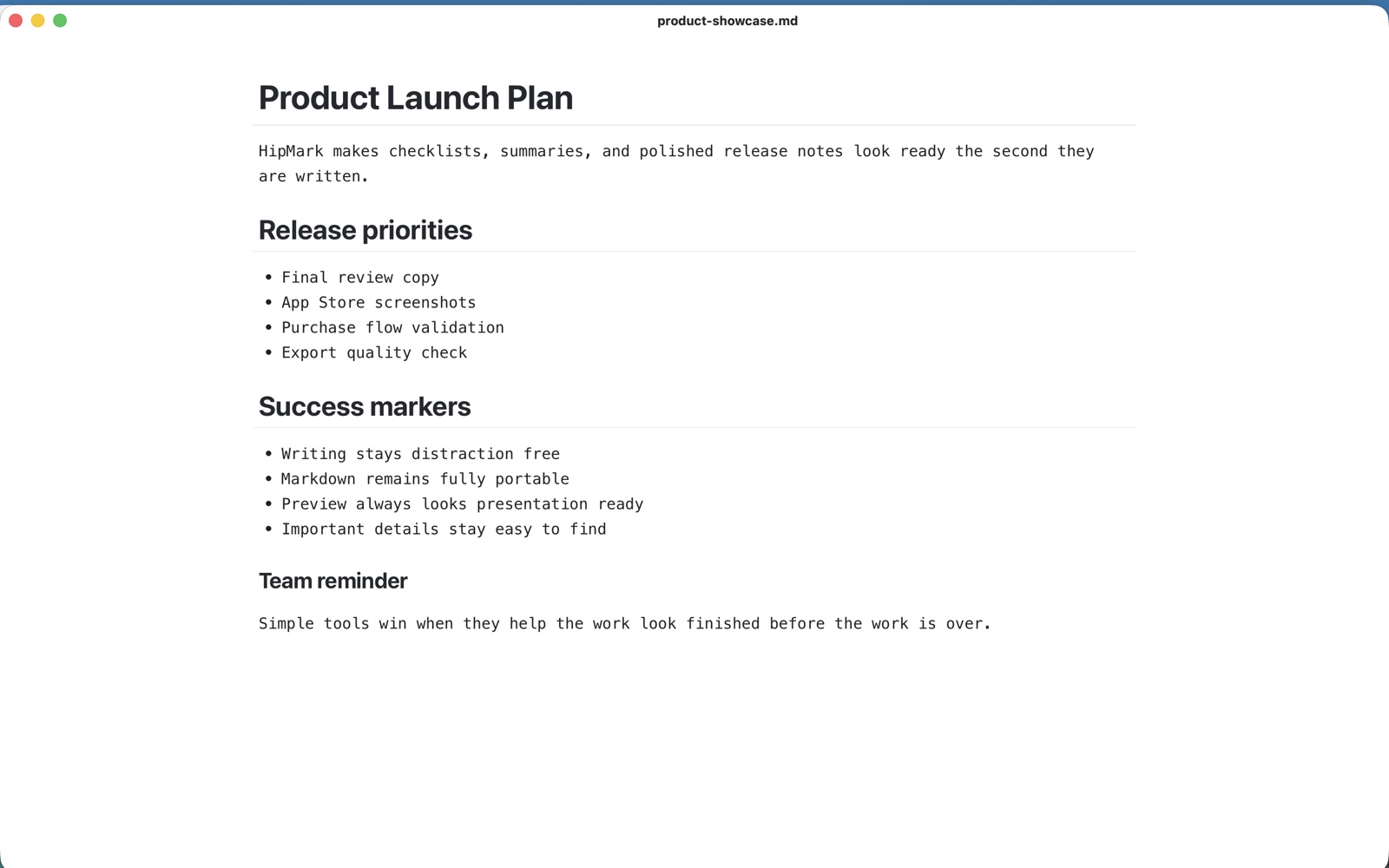
Open a Markdown file in HipMark, review its formatting, and choose PDF or HTML export from the File menu. You can create a shareable document on your Mac without uploading its contents to an online converter.
Review the document first
Read the document in live preview. Check heading levels, table width, code blocks, and math. If it contains Mermaid diagrams, confirm they render correctly. Long content may need restructuring to fit a printed page.
Remote images require a connection and an available image server. If an important image does not load, check its source before exporting.
Export a PDF
- Open the Markdown file you want to share.
- Choose Export PDF from the File menu.
- Select a file name and destination, then finish exporting.
- Open the result in a PDF reader and review page breaks, diagrams, and fonts.
PDF works well for readers who do not use Markdown, for reports, and for a readable snapshot of a document. Your original Markdown file remains editable.
Export HTML or print
HTML is useful for reading in a browser. Choose Export HTML from the File menu, then open the result in a browser to check it. External images and links still depend on their original addresses, so make sure recipients can reach those resources.
For a paper copy, use Print from the File menu and check the page and printer settings in the system print dialog.
Keep the Markdown original
The PDF is the reading copy; Markdown is the editable source. Keep both so you can update the original and export a fresh version later. Use descriptive file names and maintain your own backups.
Export follows your trial or Pro entitlement. After the trial, purchase or restore Pro in Settings → Pro. See Pro purchase information or technical support.